
Prepare your slideshow for a TV or projector
To prepare a slideshow for a TV or projector, confirm which device will play it, choose the frame and review any opening and closing cards at their full duration. Download a local MP4 and test the complete file with that screen and its speakers. A TV’s USB player, a computer connected by HDMI and a venue’s playback system can have different requirements. An MP4 extension alone does not guarantee playback.
Confirm what will play the file
Ask the organizer who will press Play and which exact device will open the file. The projector or TV may only display a signal from another player. Choose the delivery route before making the final version.
| Route | Confirm in advance | Bring |
|---|---|---|
| TV’s USB media player | The model’s video/audio formats, supported USB file system, file-size limits and repeat controls. | A compatible drive containing the tested MP4, plus the remote. |
| Computer → HDMI → screen | The computer plays the file, the cable/adapter works and sound reaches the intended speakers. | The local MP4, powered computer, cable and any required adapter. |
| Venue’s playback system | The operator’s requested format, resolution, transfer method, delivery deadline and rehearsal time. | The agreed final file and a separate backup copy. |
Use the model number to find the manufacturer’s manual, or send the export specifications below to the venue technician. Ask whether the clip will play once during a presentation or repeat in the background. This maker exports a file; looping, scheduling and remote control belong to the playback device or software.
Check format, sound and screen shape
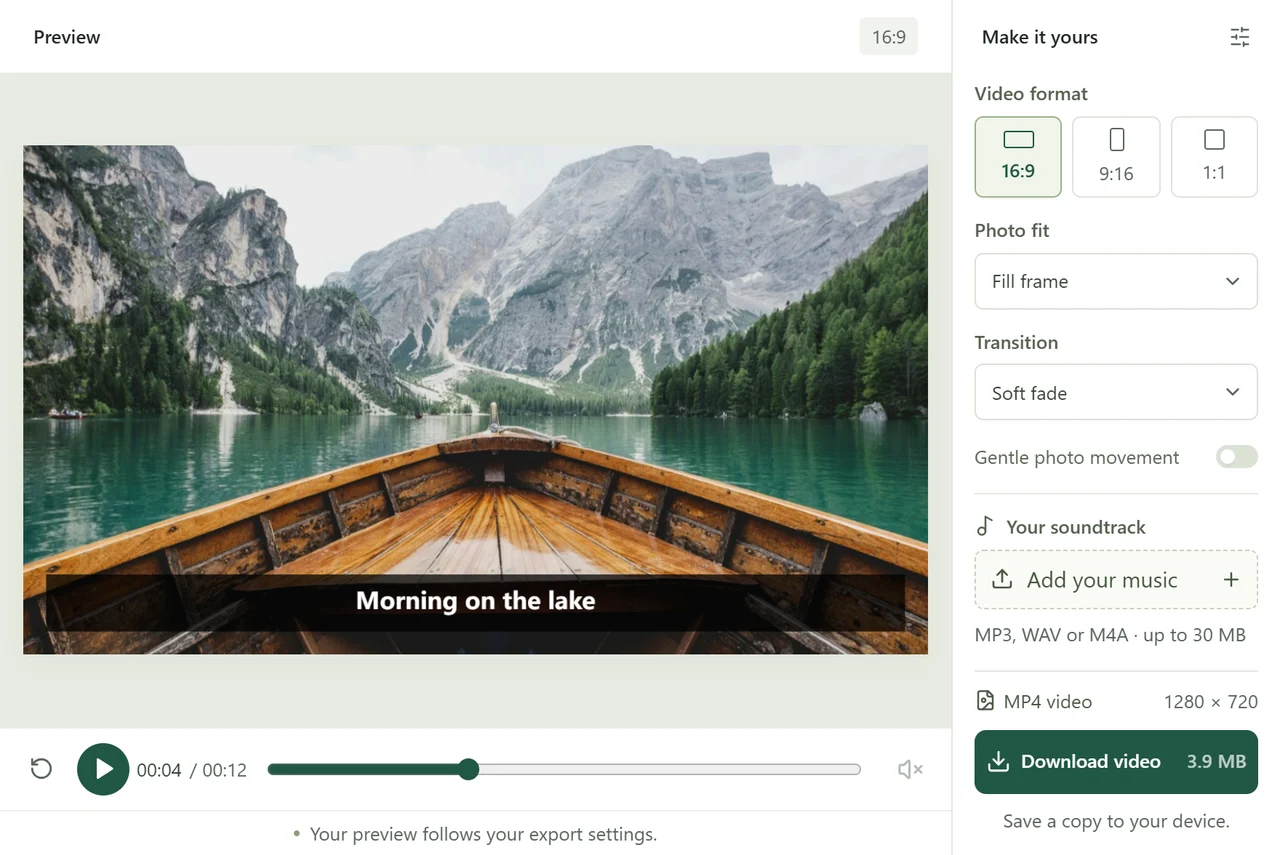
This maker exports an MP4 container with H.264 video at 24 fps and AAC audio if you add music. Free outputs are 1280 × 720 for 16:9, 720 × 1280 for 9:16 and 720 × 720 for 1:1. Paid outputs are 1920 × 1080, 1080 × 1920 and 1080 × 1080 respectively. Free allows 20 photos and 60 seconds with a watermark and no account; one project credit unlocks one paid project with 50 photos and 180 seconds, without a watermark. See pricing; paid checkout is not open yet. If the venue needs a different codec, 4K or a longer file, arrange an appropriate editor or delivery workflow before the event.
Check container, video codec, audio codec, resolution and storage requirements separately. For example, the Multimedia section in this Sony TV manual lists those categories separately. Use the manual for your model; that example is not a compatibility list for every TV.
In the workbench, Whole photo is the default for preserving group portraits and labels near the edges; Fill frame can crop them. Use separate opening and closing cards for a short title and final message, and check their reading time from the back of the room. Keep photo captions brief; their position and font size are not adjustable. Ask the operator to check screen scaling if edges disappear. Use fewer words or an editor with the needed text controls if the result remains too small to read.
Choose one of the three bundled instrumentals or a track you have permission to use; the soundtrack guide covers the start, timing and ending fade. Automatic timing allows for card time before dividing the remainder between photos. Check the displayed total, then agree whether the video or a separate venue source supplies the sound so two tracks do not play together.
Test the local copy
- Choose Export free 720p or, for a paid project, Export 1080p, and download after export finishes. Open the downloaded MP4 on the computer; do not rely on the website preview or a saved browser draft.
- Give the file an identifiable name, such as
family-reunion-final-16x9.mp4. Put the actual file on the agreed drive or venue computer and ask the operator to use that version. - For USB playback, insert the compatible drive and choose the video in the TV’s media player. For HDMI, connect the computer, select the matching input on the screen and open the local video in the computer’s player.
- Test without relying on an internet connection. Play from the first frame through the last, including the music, transition into the clip and what appears after it stops. Check captions and faces from the audience’s viewing distance.
- Check the real sound path and comfortable volume. For HDMI, confirm the computer’s selected audio output reaches the TV or venue speakers. Rehearse any handoff from the host or another music source.
- Keep a second copy on a different device or drive. Agree who holds it, who starts playback and whether repeat is needed. Verify repeat in the actual player instead of assuming it will happen.
For a memorial or wedding reception, arrange a rehearsal before guests arrive. If you change even a caption after rehearsal, export the replacement, update the clearly identified final copy and check it again. Keep the source photos and music; clearing browser data can remove the one local draft.
To keep a private server project, sign in and choose Save project. Each unused credit provides one unexported draft slot. Saved work is in My projects; server files expire 30 days from the first cloud save. A paid project allows up to three successful versions in seven days from the first successful export. Downloading the same file again uses no credit or version. Keep the rehearsal copy locally for offline playback.
Prepare a backup playback route
| Symptom | First check | Next route |
|---|---|---|
| USB drive or video is missing | Correct USB port, the model’s supported drive/file system and whether its media browser is filtering for videos. | Try an already compatible spare drive, or the tested computer/HDMI route. |
| File appears but will not play | Open the same copy on a computer. Compare the model’s supported codecs and resolution with the actual export. | Ask the technician for a supported conversion, or use a tested computer player over HDMI. |
| Picture but no sound | Volume/mute, the chosen audio output, speakers and the player’s AAC support. Check whether the exported file has sound on the computer. | Correct the audio route and replay the whole clip. |
| Cropped edges or interrupted playback | Screen scaling, player fit/fullscreen settings, computer power and sleep settings. | Rehearse the corrected setup, including the ending and any repeat. |
Do not rename an extension to pretend the codec has changed, or format an existing drive just to try a different file system. Preserve its contents and use a suitable spare instead. A backup is useful only after the alternate cable, computer, sound path and local copy have also been tested. Physical TVs, projectors and venue systems have not been tested by this website; the rehearsal confirms your particular setup.