
Make a TikTok slideshow video from your photos
To make a TikTok slideshow video, choose a story preset, arrange photos in 9:16 and set the timing automatically or by photo. Add optional opening and closing cards, export an MP4 and review that file inside TikTok before posting. This makes a continuous video. For a post viewers can swipe through themselves, use TikTok’s photo-posting flow instead.
Choose photo mode or a video
Decide who controls the pace. A photo post leaves individual images available to swipe; a rendered slideshow plays the timing and transitions you chose. Uploading an MP4 does not turn it into a swipeable photo post.
| What you want | Prepare | Where to finish |
|---|---|---|
| Viewers swipe between photos | Individual photo files | TikTok’s available photo-posting interface |
| A timed story with fixed transitions | One exported MP4 | The video-upload preview in TikTok |
For a photo post, check the account and app you will actually use: open TikTok’s creation screen, allow access to the photos you intend to share and inspect the photo-selection options. Select a few test images and check whether the resulting preview keeps them as separate, swipeable photos. Review the order there before continuing. If you only get a timed video, stop and check the current app’s photo controls rather than assuming the two results are interchangeable.
TikTok’s Photo Mode introduction describes the carousel format. Its 2022 announcement does not establish the controls or availability in your account today. Use the options visible in your current app; this maker does not enable TikTok account features or publish a photo carousel for you.
Arrange a vertical photo story
- Open the slideshow workbench, choose Add photos and select JPEG, PNG or WebP files. The Free export limit is 20 photos and 60 seconds; paid projects allow 50 photos and 180 seconds. Photos can be up to 20 MB per file and 100 MB in total.
- Choose 9:16 under Video format. Start with a photo that makes the subject clear, follow it with the supporting moments and finish with a definite ending.
- Drag photos into order or use the earlier/later arrows. Automatic timing divides a chosen video length after allowing for any opening and closing text cards; you can still adjust a photo’s Duration. Six photos at three seconds each plus two three-second cards make a 24-second example. Keep the full story within 60 seconds on Free or 180 seconds for a paid project, and review card text behind the app’s overlays.
- Use Whole photo when the edges matter. Fill frame can crop a landscape photo heavily in a vertical video. Check every photo in the preview after changing the shape.
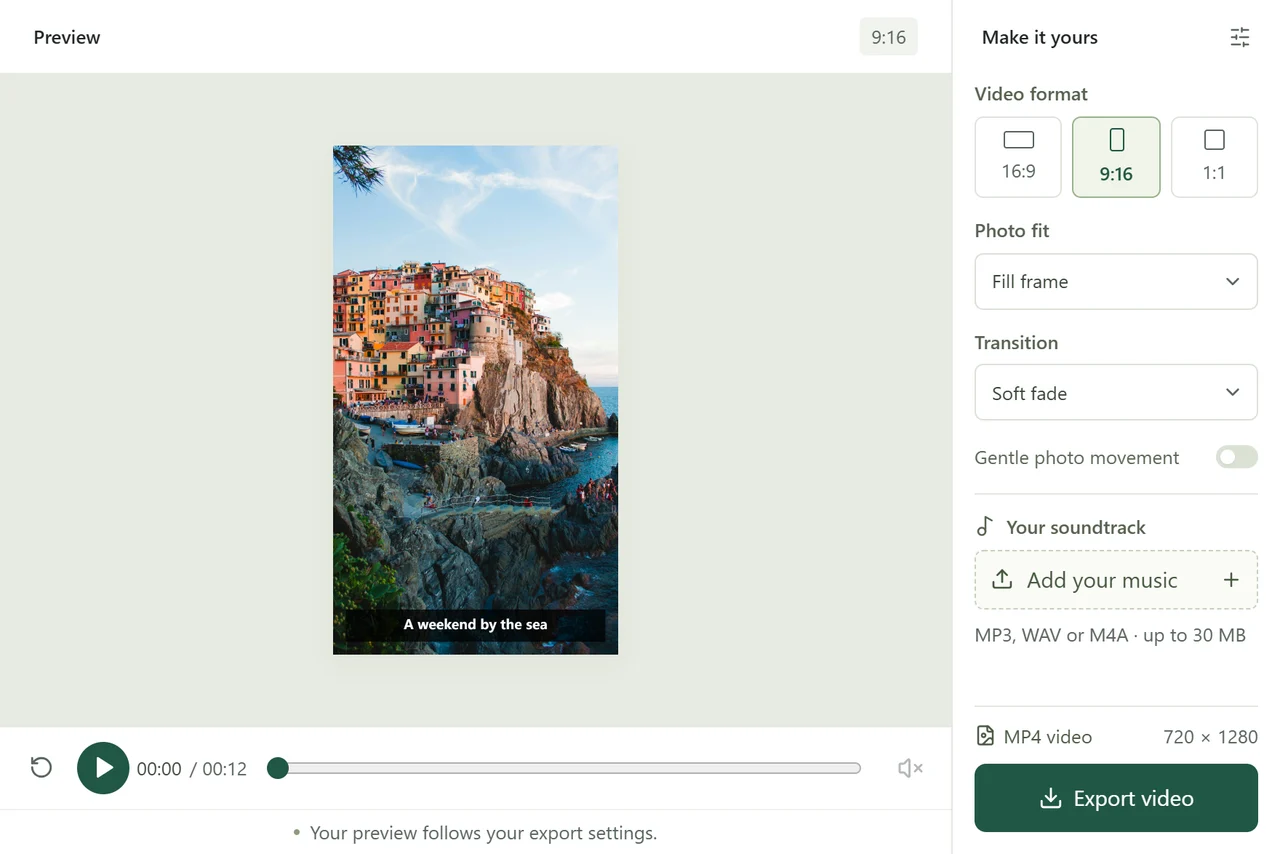
Keep any Caption short and away from important faces in the source image. This maker draws captions near the bottom and does not offer a draggable text position. TikTok’s controls and post description can cover that area. If they overlap in the app preview, remove the baked-in caption and add text using TikTok’s available positioning controls. There is no single pixel-safe rectangle promised here for every device or TikTok interface.
For a trip, the travel photo story guide helps reduce repeated shots before you build the vertical version.
Check audio and export settings
The 9:16 export is 720 × 1280 on Free or 1080 × 1920 for a paid project, with H.264 video in an MP4 at 24 fps. If you add music here, the download includes AAC audio. Free exports need no account and include a watermark; one project credit unlocks one paid project without a watermark. See pricing; paid checkout is not open yet. Browser encoding support is checked during Free export; keep your source files if it is unavailable.
Choose one audio route: a bundled instrumental, or a track you are permitted to use with Add your music, following the music timing guide, or export without music and choose an eligible sound inside TikTok. Check the applicable account, region and use. For promotional content, TikTok’s Commercial Music Library guide explains account access, region and placement filters. A sound available inside TikTok is not a promise of permission to embed it in a separately distributed video.
Select Export free 720p or, for a paid project, Export 1080p. Wait for completion and download the MP4 locally. If you made it on a computer, transfer that file to the device you use for TikTok and make sure it plays there before uploading. A saved browser draft does not transfer to your phone or another browser.
To keep a private server project, sign in and choose Save project. Each unused credit provides one unexported draft slot. Open saved work in My projects; server files expire 30 days from the first cloud save. A paid project allows up to three successful versions in seven days from its first successful export, so review TikTok’s overlays before using the remaining versions. Downloading the same file again uses no credit or version.
Review inside TikTok
In your signed-in TikTok app, use the available video-upload flow to select the downloaded MP4. Allow access to that file if prompted. Preview the entire sequence before choosing to post: check the first frame, all captions under the app’s overlays, the ending, audio level and any second sound added in TikTok. Choose the intended cover, description and audience in the controls your account provides.
- The file is missing: confirm that you downloaded the MP4, transferred the actual file and granted the app access. A browser preview or draft is not the video file.
- Text or faces are covered: return to the workbench, change the framing or captions, export again and inspect the replacement in TikTok.
- Audio is missing or restricted: check the local MP4 first, then the app’s audio notice and permitted sound options. Do not assume a successful local export guarantees the platform will accept the music.
If you choose to publish, open the resulting post and check playback, audience and sound again. Keep the local MP4 and original photos so you can correct the video without relying on a browser draft. Posting and the final account-specific result happen in TikTok; they are not performed by this website.