
Add music that fits your photo slideshow
To add music to a photo slideshow, choose Quiet Light, Warm Days or Small Celebrations, or upload one track you have permission to use. Set its start point, volume, looping and ending fade, then listen to the downloaded MP4. Automatic photo timing can allow for title cards; optional beat alignment uses bundled tracks’ known BPM. Uploaded audio has no automatic beat detection.
Choose a track you can use
Start with audio you created or a track whose permission covers the video and the way you will share it. Keep a record of the creator, source link, license or written permission, required credit and intended use: private delivery, an event, a public post or promotion. Having a playable audio file does not establish those permissions.
For a Creative Commons track you upload, read its specific license. Creative Commons describes different attribution, commercial-use and adaptation conditions. Check any required credit before export. Slidesong does not verify the license of an uploaded song, and buying a project does not grant those rights. The bundled instrumentals are separate from third-party music you upload.
- Open your photos in the workbench and arrange their order before matching the soundtrack.
- Under Your soundtrack, choose Quiet Light, Warm Days or Small Celebrations. All three bundled instrumentals are available on Free and paid projects. To use your own audio, choose Add your music and one MP3, WAV or M4A up to 30 MB with permission for the intended use.
- Confirm the filename appears. There is one soundtrack slot; remove the current track before selecting a replacement.
A streaming link is not an audio-file upload. If you cannot obtain an authorized, supported file, make a silent version or use a different track. Multiple songs and voice-over mixing require an audio editor before you bring the finished single track here.
Match the music and photo duration
The video length includes every photo plus any opening and closing text cards. For example, eighteen photos at three seconds each plus two three-second cards make 60 seconds. A 90-second track starting at 15 seconds has 75 seconds remaining; this example uses its first 60 seconds, across both the text cards and photographs. Cards use time without using photo slots.
| Situation | What to do | Check |
|---|---|---|
| Music is longer | Choose a suitable start point. The exported audio ends with the video; enable the ending fade for a quieter finish. | The last image and musical phrase feel finished. |
| Music is shorter | Enable Loop to fit video, shorten the photo sequence, choose a longer track or accept a silent tail. | The repeat does not jump awkwardly, or the intentional silence fits. |
| The chosen start is too late | Set Start at to a point before the track ends. | Audio plays from the chosen point and export no longer reports an invalid start. |
Use automatic timing to divide a chosen video length between the photos after allowing for the cards. Optional beat alignment uses a bundled instrumental’s known BPM; it may make the final length slightly shorter to fit whole beats. It does not analyze or detect beats in uploaded audio. Leave beat alignment off for an unhurried memorial or any story that needs a steadier reading pace, then adjust individual photo durations.
Open Track options to change the start and looping. Looping repeats the segment from the chosen start to the end, without adding a crossfade between repeats. With looping off, music stops when the segment ends, leaving the remainder of the video silent.
Change a selected photo’s Duration to adjust the sequence. Each photo can last 1–15 seconds in this interface. Free exports allow up to 20 photos and 60 seconds; paid projects allow up to 50 photos and 180 seconds. A longer soundtrack does not extend either video limit.
Set volume and fades
Use Volume to set the level that will be exported. In Track options, Fade out at the end lowers the soundtrack over its final two seconds, or the available shorter ending. With looping off, that fade happens at the end of the audible segment, even if the photos continue afterward.
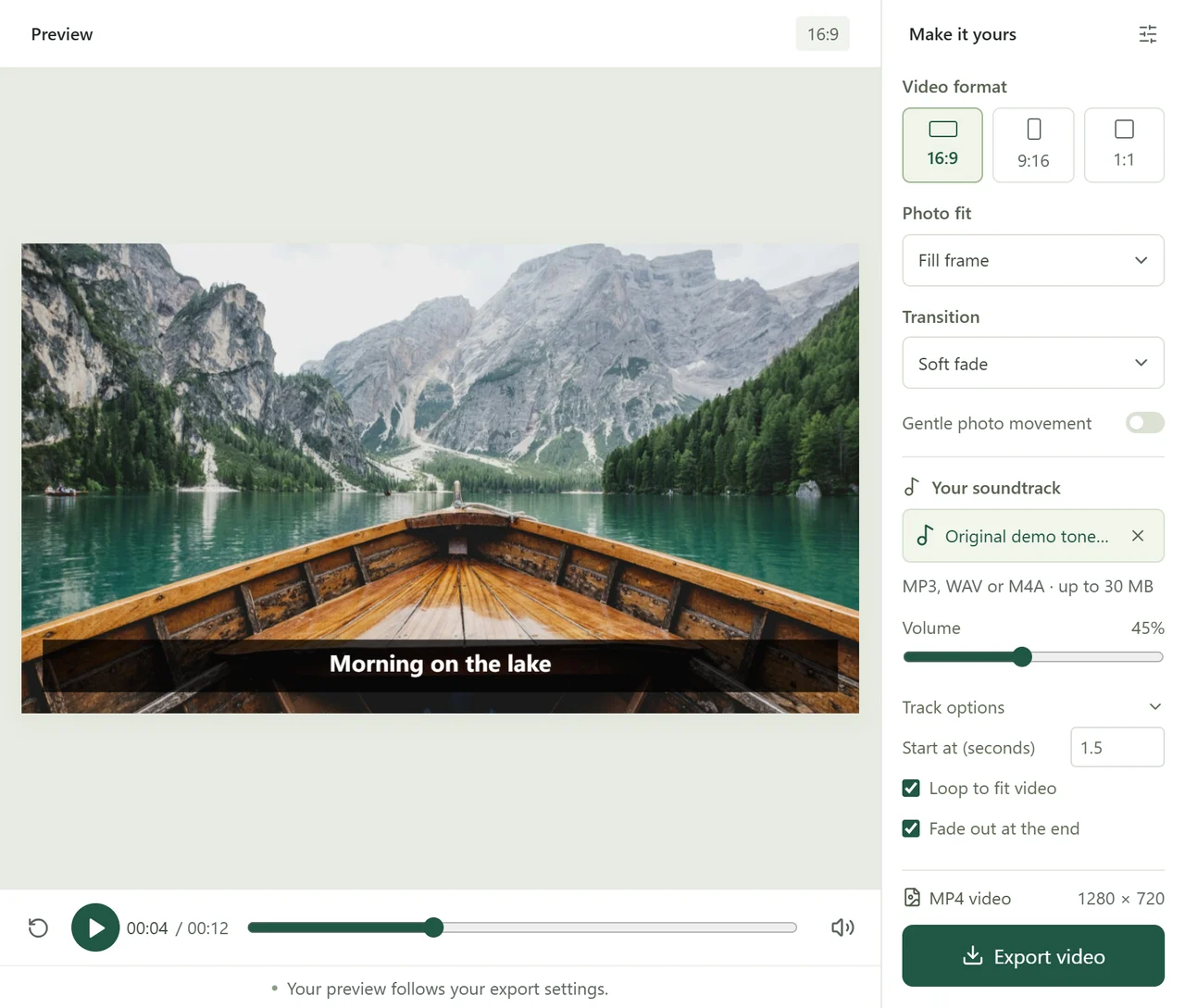
Press Restart preview and then Play preview. Listen to the opening, any loop boundary and the final photo. If the browser blocks audio playback, press Play again. Check that the preview is unmuted and the device volume is audible. The preview’s mute button is for listening only; it does not mute the export.
There is no separate fade-in control. To soften the opening, choose a quieter starting passage or prepare a fade-in in your audio editor before importing the file. This workspace also has no second audio track or automatic speech ducking. For event playback, test the final level through the actual speakers as well as headphones.
Check the exported soundtrack
Choose Export free 720p for a watermarked video without an account, or Export 1080p for a paid project without a watermark. One project credit unlocks one paid project; see pricing. Paid checkout is not open yet. Wait for the download and save the MP4. The export uses H.264 video and AAC audio when a track is added. Open the downloaded file in a player and listen from start to finish: the opening should use the selected music start, repeats should happen where expected and the ending should match your fade or silence choice.
- No sound: check the player and device volume, the workbench Volume setting and whether the selected music segment has ended. Preview mute alone does not explain a silent export.
- Unexpected silent tail: compare the remaining track length with the photo duration. Enable looping or shorten the sequence, then export again.
- The music cannot be decoded: check that the file itself plays, then try another supported, authorized file. Changing its extension does not convert its contents.
- The browser cannot encode audio: keep your sources and use a browser with the required H.264/AAC encoding support. Free export checks browser support when you request it; a playable preview does not establish that encoding is available.
Download each finished version before replacing it. Local browser drafts are separate for each account and for guests; a guest draft can be continued after signing in. To upload a private server copy, sign in and choose Save project. Each unused credit provides one unexported draft slot. Server files in My projects expire 30 days from the first cloud save. Keep a separate backup of your photos, music and finished video. If you plan to add a platform sound later, follow the TikTok video workflow and keep a separate silent export.
A paid project allows up to three successful versions in seven days from the first successful export. Failed exports use no successful version and release any first-export credit reservation. Downloading an existing file again uses no credit or version, so replay that file to check the soundtrack before requesting another export.