
Make a wedding slideshow for your celebration
Start with the Wedding preset and build a photo story from both partners’ early lives to the moments you share. Add opening and closing text cards, use automatic timing as a starting point and choose optional music. Free allows up to 20 photos and 60 seconds; paid projects allow up to 50 photos and 180 seconds, including cards. Prepare separate copies for the reception and phones.
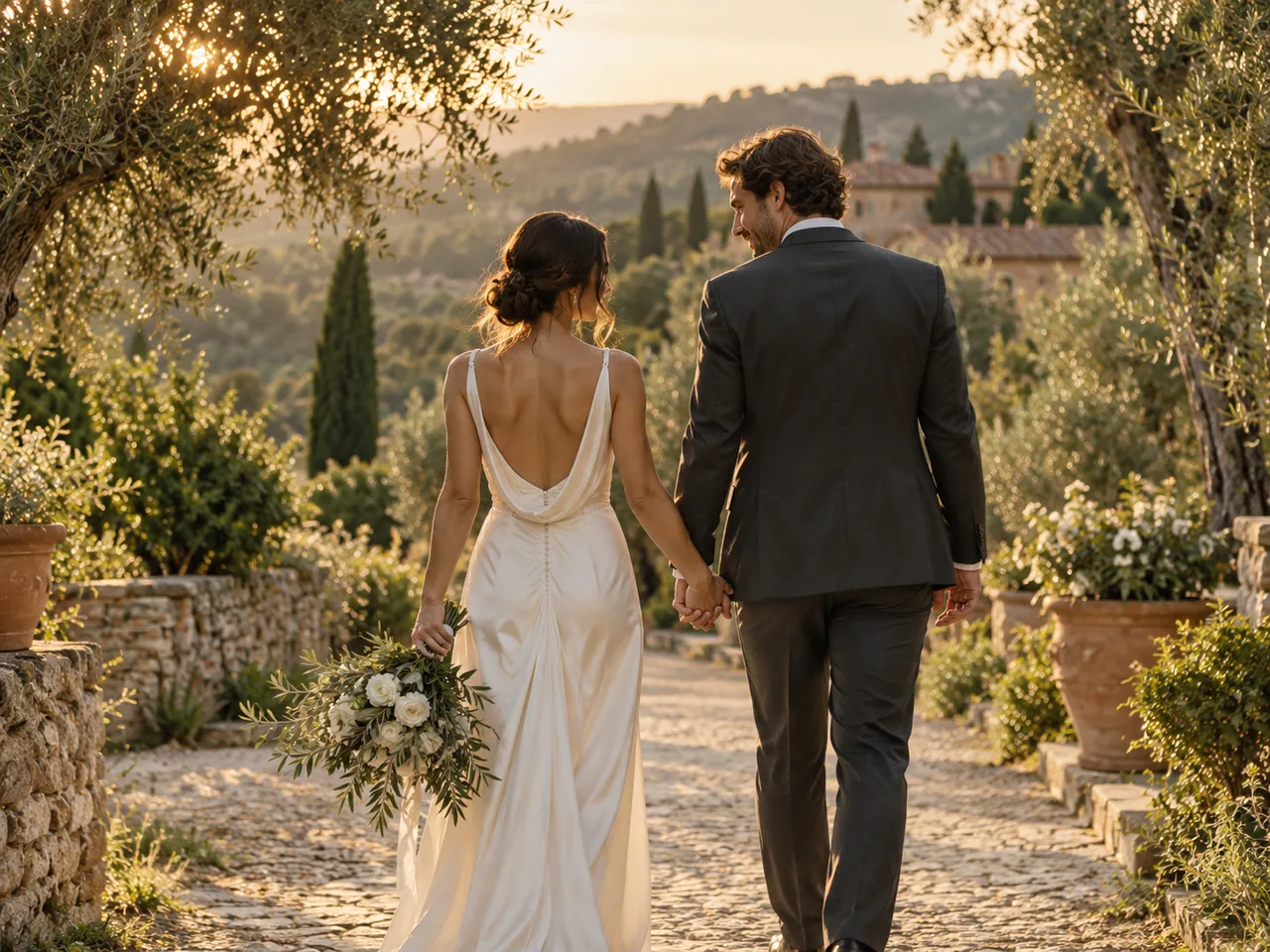
Your starting point in Slidesong
Wedding story
Soft ivory titles and a gentle rhythm for your celebration.
- Frame
- 16:9 · Whole photo
- Starting pace
- 4 seconds per photo
- Suggested music
- Quiet Light
Add your own opening and closing text cards, then automatically divide the remaining time between your photos. Cards count toward the video length, without using a photo slot. Change the frame, pacing or music before exporting.
Use this storyBuild your story together
Let each partner choose the photographs that explain who they are: people they grew up with, interests they kept and moments they want guests to know. Then choose the pictures that connect those two lives: meeting, early dates, a shared home, trips, friends or the proposal. Use the milestones that belong to your relationship.
A balanced short story example
One possible plan uses six early-life photos from each partner and twelve photos of life together. At five seconds each, the 24 photos use two minutes; adding two three-second text cards brings the story to 126 seconds and requires a paid project. Automatic timing can divide a chosen total after allowing for the cards. Keep a similar span of life stages in each partner’s introduction so neither takes most of the video.
If one partner has fewer childhood photos, use a smaller early-life section for both or alternate a few matching stages before moving into your shared story. There is no need to repeat nearly identical pictures to fill a quota. Include close friends and family where they help explain the moment, and have both partners approve jokes and photographs before an audience sees them.
- Collect both selections in a folder you control, keeping a note of names, dates and who supplied each file. Choose one person to assemble the slideshow and collect both partners’ corrections.
- Open the photo workbench and select Add photos. It accepts JPEG, PNG and WebP, up to 20 photos for Free export or 50 for a paid project, 20 MB per photo and 100 MB in total.
- Drag the photos into story order, or select each one and use the up/down controls. Set its Duration to suit the photo and caption. The range is 1–15 seconds in half-second steps, with a 60-second Free limit or a 180-second paid project limit.
If the program calls for a longer montage, video clips or more photos than this short version holds, choose an editor with that capacity. For a later celebration covering years of married life, use the anniversary story approach to choose different milestones.
Choose a reception-ready design
Ask the venue which screen and player it will use before choosing Video format. Start with the reception version, then make a second export for the way you want to share it on phones. Changing the format requires a fresh check of every photo and caption.
| Version | Video format and output | Check before export |
|---|---|---|
| Reception screen | 16:9 · Free 1280 × 720 · paid 1920 × 1080 | Confirm the screen shape and read text from the back. |
| Upright phone viewing | 9:16 · Free 720 × 1280 · paid 1080 × 1920 | Check group shots and the caption area on a phone. |
| Square sharing copy | 1:1 · Free 720 × 720 · paid 1080 × 1080 | Check that the intended sharing service accepts it. |
Set Photo fit to Whole photo when you need to preserve everyone in a group or the edges of an old print. This can leave space around the photo. Fill frame fills the shape by cropping; check faces at both edges, especially in the upright version. These settings affect the whole slideshow.
Add a short Caption where guests need a name, place or year. There is a 120-character limit and one fixed caption area at the bottom. There is no font-size, color or position control. Test a brief label such as “Our first trip, 2021” using your real details. If text is hard to read or covers someone, shorten or remove it and check again on the intended screen. If that still cannot meet the venue’s text needs, use an editor with adjustable typography.
The Wedding preset starts with soft ivory text cards and gentle photo movement. Write an opening with your names and a closing message, then choose Soft fade or No transition to suit the pictures. Turn movement off if you prefer still photos. Preview the beginning, every group photo and the ending before making the reception copy.
Pair the story with music
Decide who controls the sound: the exported video or the person operating the room’s music. A focused screening can use an embedded track. A background display or a slideshow accompanying a live introduction can use a music-free export, with the room’s operator handling sound separately. These viewing choices are also discussed in Wedding Spot’s slideshow planning guide.
Quiet Light is the Wedding preset’s suggested instrumental; Warm Days and Small Celebrations are also available on Free and paid projects. To use a personal track instead, choose Add your music and one MP3, WAV or M4A up to 30 MB. Adjust Volume and check the start, looping and ending fade in Track options. The music controls guide covers the full workflow. The editor uses one track, without song mixing, narration recording or automatic music ducking during a speech.
Write a cue for the people in the room
For the two-minute example, a cue note could read: “Emcee finishes the introduction. DJ stops background music. Operator plays reception-final.mp4 with its own audio. When the two-minute video ends, DJ resumes the agreed program.” Replace the running time and filename with the final export. Give one person responsibility for starting it.
Rehearse that handoff. If someone will speak over the pictures, choose Remove music before exporting the version used during the speech. Mute preview only silences the preview and does not change the exported sound. Confirm the permission for music in the video and for the intended screening and online sharing. For a track you upload, the U.S. Copyright Office’s music guidance explains why the recording, composition and intended uses need checking. Ask the venue about its arrangements separately.
Export for the reception and sharing
Export the two versions one after the other. Free 720p exports need no account and include a watermark. One project credit unlocks one 1080p project without a watermark, with up to three successful versions in seven days from the first successful export. Failed exports use no successful version and release any first-export credit reservation; downloading the same file again uses no credit or version. See pricing; paid checkout is not open yet.
The local draft follows your current edit. To keep a private server project, sign in and choose Save project; each unused credit provides one unexported draft slot. Open saved projects and successful versions in My projects. Server files expire 30 days from the first cloud save; keep your own copies of the reception and phone videos.
- Approve the reception sequence with both partners. Choose Export free 720p within Free limits, or Export 1080p for the paid project. Wait for it to finish, then select Download video. Rename the saved file clearly, for example reception-final.mp4, and keep a backup.
- Change Video format for the sharing copy. Review all faces and captions, remove moments you only want the wedding audience to see and recheck photo and music permission for the planned sharing audience. Keep the original files and your sequence notes if you will need to reconstruct an earlier edit.
- Export and download again, saving a different filename such as wedding-phone.mp4. Changing photos or settings removes the previous download button; it does not delete the reception MP4 you already downloaded. Open both saved files to check which version is which.
Approve the file the venue will use
Send the operator the final filename, running time and audio plan. These files contain H.264 video at 24 fps, with AAC audio if music is included, at the dimensions listed above. Have the operator confirm support and play the actual local file from beginning to end on the reception screen and speakers. Check the opening cue, every caption, any cropped faces, volume and the ending. Read the text from the seating area. The TV playback guide covers player and connection checks if the file is rejected. Keep a backup copy available for the operator.
If export fails, keep the workbench open and follow its error. For unavailable encoding, try current desktop Chrome; for a failed exporter load, check the connection and retry. Wait for Draft saved on this device before reloading. If the status is Draft not saved, keep the tab open and download before leaving. A draft is not a backup of either final file. Share the downloaded phone copy yourself after checking the receiving service; the maker does not publish it or create a hosted viewing link.