
Make a photo slideshow of your pet's best moments
Use the Pets & pet memories preset for a small photo story around your companion’s growth, habits or a day together. Add opening and closing text cards, keep faces and paws visible, and use automatic timing as a starting point. Quiet Light or either of the other bundled instrumentals is optional. Free allows up to 20 photos and 60 seconds; paid projects allow up to 50 photos and 180 seconds, including cards.
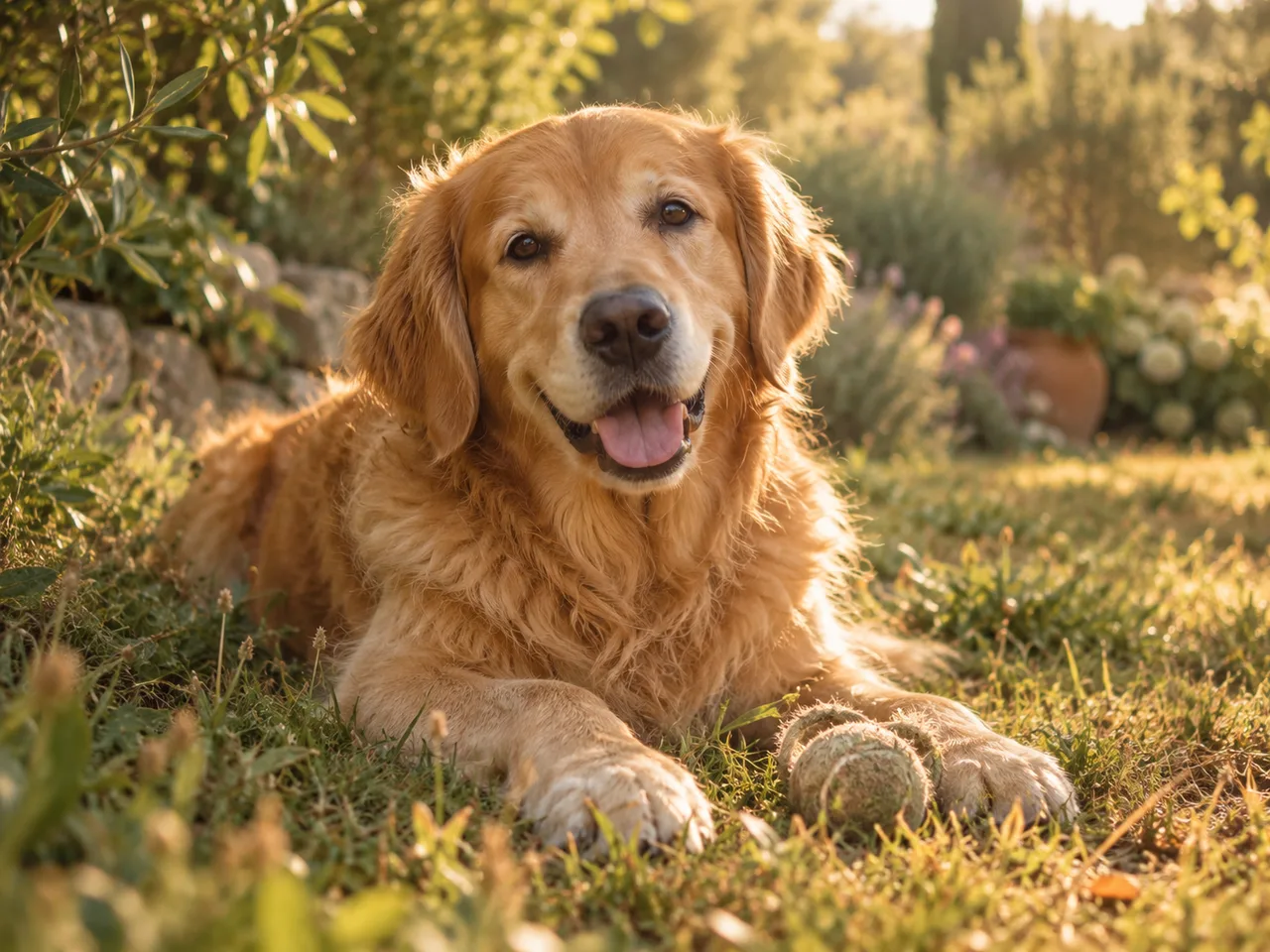
Your starting point in Slidesong
Pets & pet memories story
A gentle story for everyday joy or a loving goodbye.
- Frame
- 16:9 · Whole photo
- Starting pace
- 4 seconds per photo
- Suggested music
- Quiet Light
Add your own opening and closing text cards, then automatically divide the remaining time between your photos. Cards count toward the video length, without using a photo slot. Change the frame, pacing or music before exporting.
Use this storyShow their personality
Choose one thread before choosing every cute photo. For a growth story, begin with an early photo, show a few first experiences, then pair an old habit with its present-day version. The same toy, chair or favourite person can make the change easy to see without a long explanation.
For an everyday story, follow a smaller sequence: waiting for the walk, the outing, a game and the nap afterwards. Or build around one characteristic, such as always finding the sunny spot. Keep the images that add a new moment; five nearly identical sleeping photos rarely need five separate places in the edit.
- Pick an opening photo that makes the pet recognisable and an ending that brings the story back to their personality or your time together.
- Open the photo workbench and choose Add photos. Use JPEG, PNG or WebP, no more than 20 MB per file or 100 MB of photos altogether. These are still photos; a video clip is not a photo input.
- Drag the images into your chosen order, or select one and use the earlier/later arrows. Set Duration for each image and play the story from the beginning.
Twelve photos at four seconds each plus two three-second text cards make a 54-second story within Free’s limit. Use the opening card for your pet’s name and the closing card for a small memory or message. Choose automatic timing for an initial pace, then hold a meaningful expression longer. Cards use video time but no photo slots; keep the full story within 60 seconds on Free or 180 seconds for a paid project.
Keep the small moments visible
For an action photo, choose the clearest useful frame from the original set. Check the eyes, ears, paws and tail as well as the centre of the image. A pose that looks good in the thumbnail may lose the part that makes it funny when placed in a different frame. The slideshow does not repair motion blur or animate a pet’s body.
Start with Whole photo under Photo fit, especially for upright portraits or a pet near the edge of a wide image. It keeps the complete photo visible and may leave space around it. Fill frame crops to fill the video frame. That fit setting applies to all photos, so check the full sequence before keeping it.
Choose Video format for the way you will show the video, then inspect both upright and wide photos. If the crop cuts off the pet, switch back to Whole photo or use a better-framed original. There is no control for moving the crop to follow an off-centre animal. Turn off Gentle photo movement if movement distracts from a small expression or makes the framing harder to judge.
Add a Caption only where it helps: “First day home”, “The favourite chair” or “Still carrying that toy”. The field allows up to 120 characters, but a few words often do the job. Text appears in a fixed bottom bar, which cannot be dragged away from a low face or a pair of paws. If it covers the point of the photo, shorten it, leave it empty or choose another photo. Watch the caption over the image rather than judging the words in the input box alone.
Choose the mood
Let the purpose guide the pace. A playful account of a day together can move between distinct moments; a growth story may need a longer pause on an old-and-new pairing. Under Transition, choose Soft fade for a gentle change or No transition for a direct cut. You do not need an effect on top of a photo whose expression already carries the scene.
Quiet Light is suggested for Pets & pet memories; Warm Days and Small Celebrations are also selectable on Free and paid projects. For your own track, choose Add your music and one MP3, WAV or M4A up to 30 MB with permission for its intended use. Listen through the start, any loop and the closing card, and adjust Volume or the ending fade as needed. For a loving goodbye, keep the pace gentle and leave beat alignment off if it distracts. A silent story is also an option.
If your main purpose is to say goodbye, add life dates or share a remembrance with family, use the memorial slideshow guide for the tribute workflow. You can still choose warm or funny memories; there is no requirement to darken the photos or make every moment solemn. An everyday pet story can simply stay a celebration of daily life.